Okay, here's the deal... when you find a picture you want to post:
a) right-click on the thing and choose 'Copy Image Location.'
b) While posting, click on 'Image'... it's there amongst other stuff just below and to the right from where you're typing under the heading 'Instant UBB Code.'
c) A little window pops up. Right-click followed by 'paste.' You just pasted in the Image Location. Hit 'OK' and ya got it. (won't show up as a pic until you preview your post or submit it)
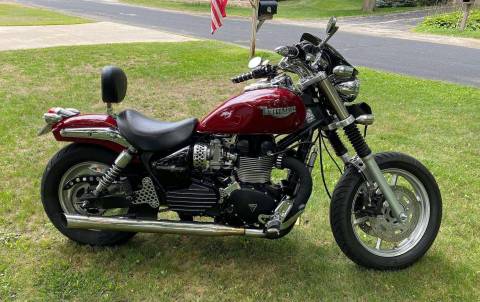
Simple as abc. By following these steps I got this pic from your photobucket page (nice friggin' bike btw).

There are variations on this theme however, the variation being step 'a.'
1) First variation. Using your slide show as an example (the one in your sig) let me point out that it runs in webapp called Flash. Within flash ya can't do the 'a' thing. Sooooo, I got outta your slide show by clicking on 'back to main view.' Then step 'a' worked on the picture of my choice, followed by steps 'b' and 'c.'
2. Another variation. When you are logged into your photobucket account, if you hover your mouse over a picture some stuff shows up underneath. Click on 'direct link,' copy the stuff there (right-click). Then go to steps 'b' and 'c' above.
Do this once or twice and you're a pro!! Happy pic posting!!!